




VittRos Travels
This is our collection of travel articles, by Elena, and nonsense, usually mine.
It's an open service, so no login is required, but some articles will not be visible.
In case someone knows the address of one of these protected articles, a courtesy page will appear:
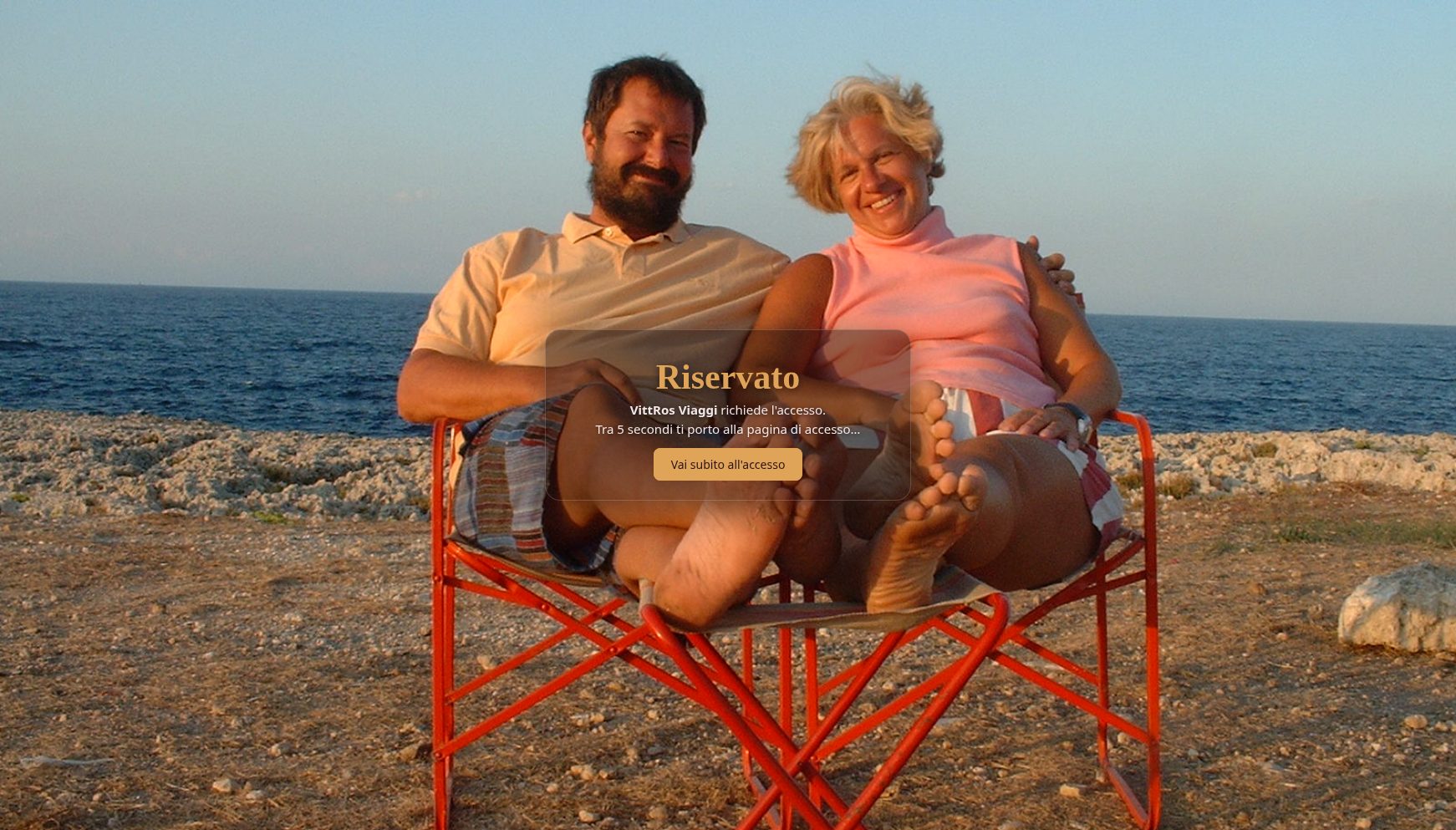
In any case, in the normal flow, after the platform's initial page, the list of articles opens.
The page is slightly different for guest or registered users:
guest:
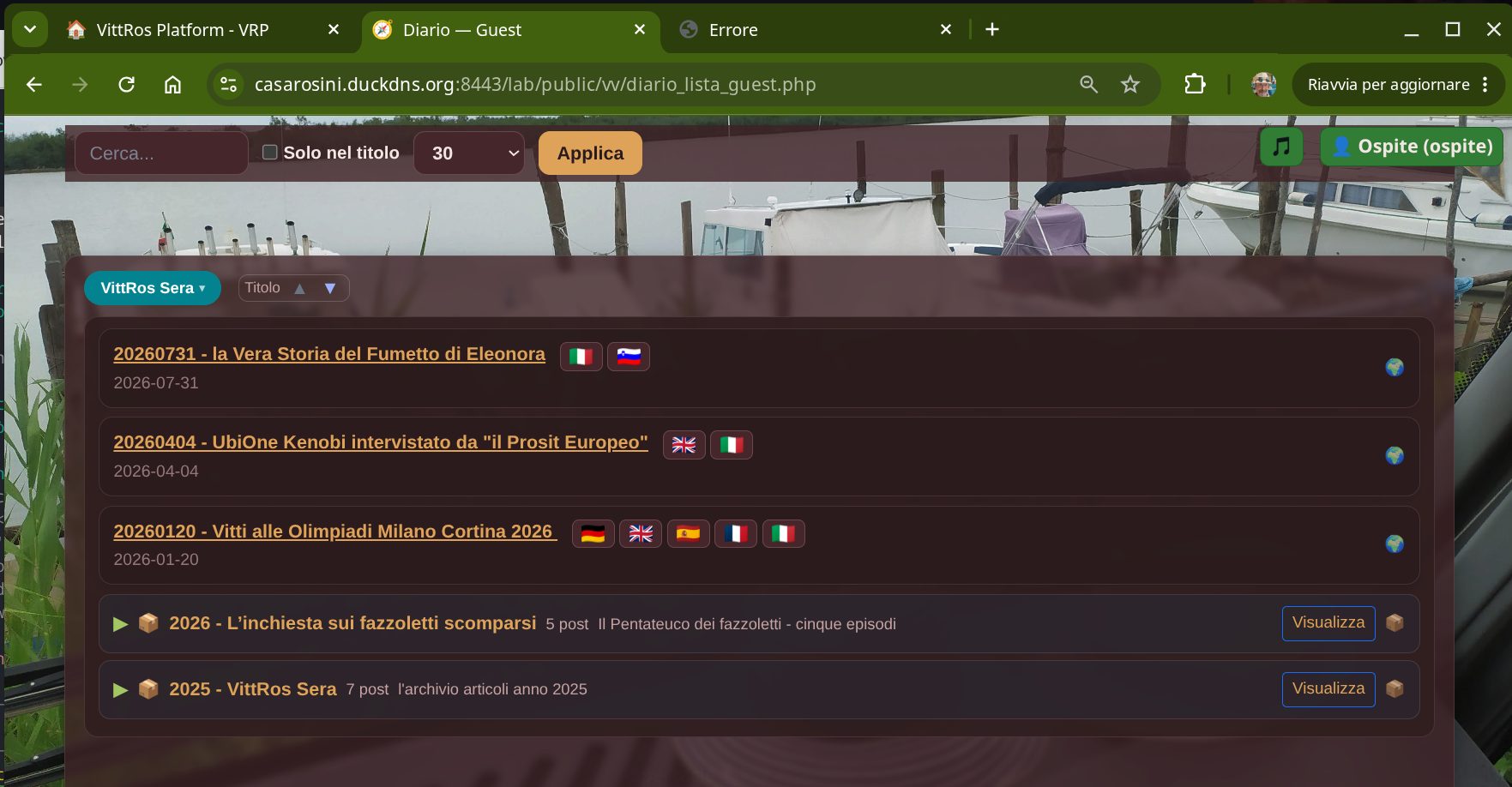
- in the top bar, search options (1)
- a search field
- a flag to limit the search to the title only, or extend it to the entire body of the articles
- the number of results to display per page
- the Apply button, to confirm the search options
- in the top bar, music player (2)
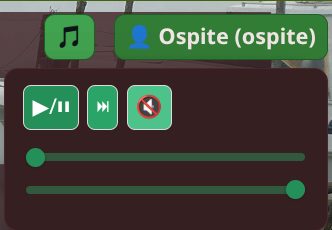
- a play/pause toggle
- a button to go to the next track
- a slider to move through the track
- a volume slider
- in the top bar, badge (3)
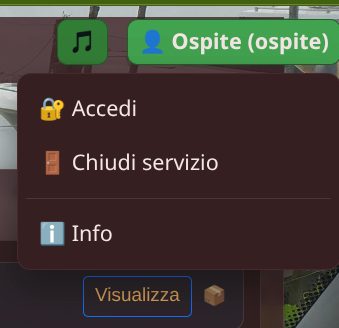
- who is using the platform, in this case an unregistered guest
- the button to go to the login page
- the button to close the VittRos Viaggi service
- the button for information on the software release
- in the list frame (4)
- the category filter
-
Travel
-
All
-
VittRos Sera
- Elena
- Miscellaneous
- Help
-
- the sorting by title, ascending/descending alphabetical order
- the category filter
Registered User:
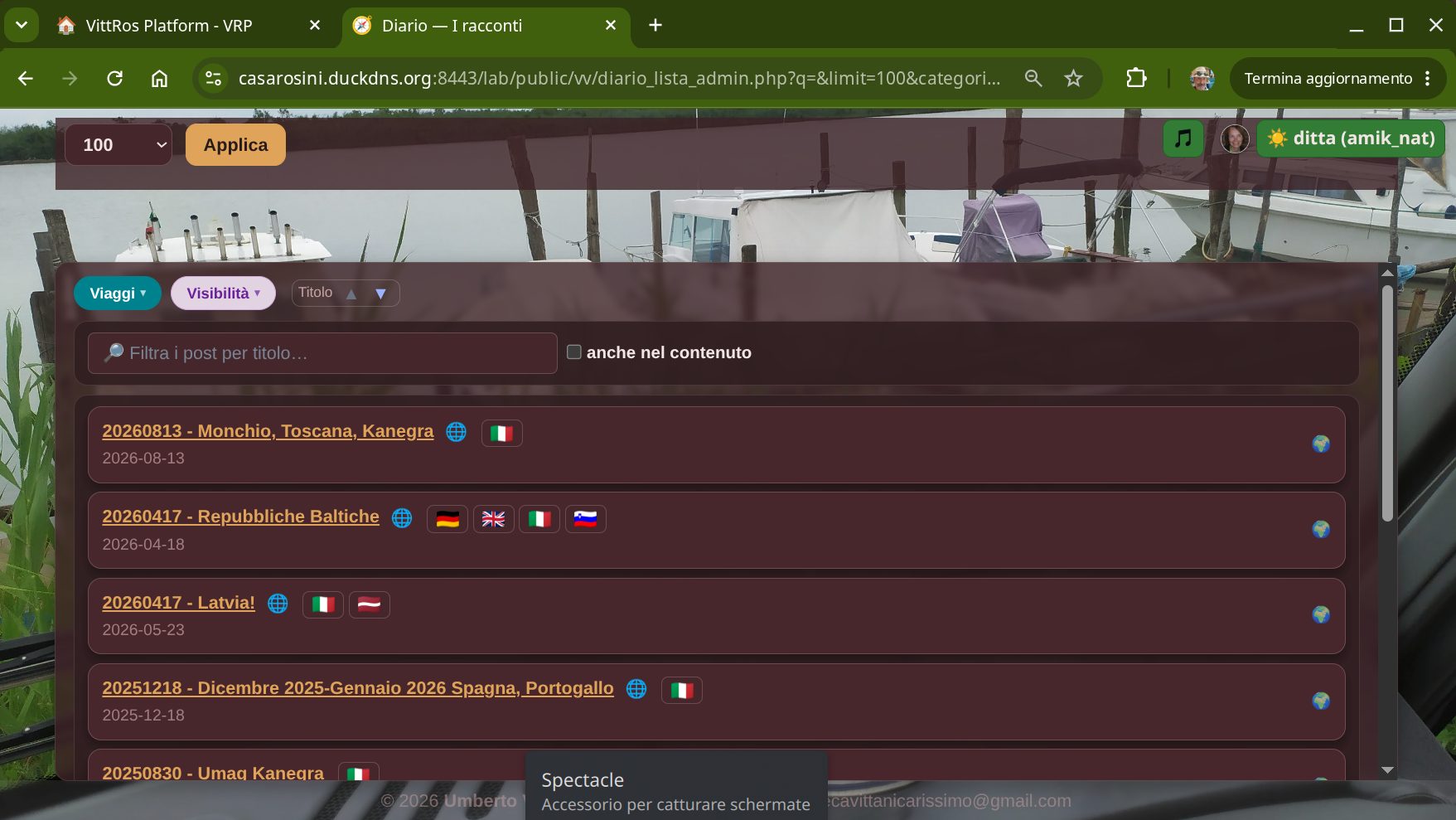
- In the top bar, search options (5)
- the number of rows per page
- the Apply button
- in the top bar, music player (6), as on the public page
- in the top bar, badge (7)
- the zoomable photo of the user
- the symbol that identifies the role
- the name
- the role
- in the list (8)
- the filter by category, as for the public page, plus some categories to which the role gives access
- a search field
- a flag to limit the search to the title only, or extend it to the entire body of the articles
- The titles of the articles, with the visibility symbols (public, private) and available languages
the article:
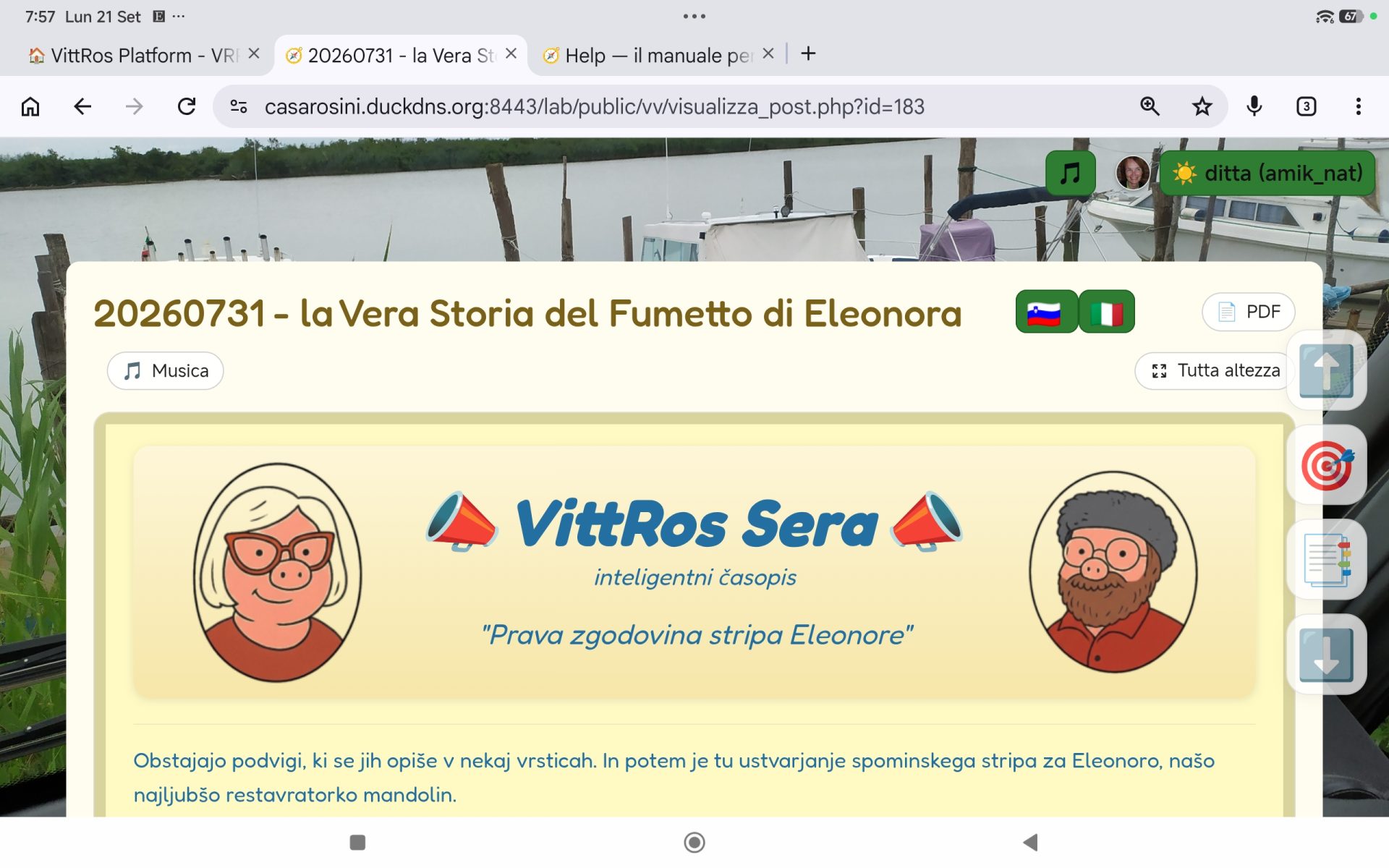
The article is displayed in the user's language, if available, otherwise in the language in which it was written.
At the top right are the music player controls, the user's image, and the badge, as in the lists.
Buttons in the frame:
- Flag icons, to switch to another language
- PDF, to download the article in PDF format
- Music, download the soundtrack MP3s
Buttons to move within the article, on the right:
- Beginning of the article
- Intermediate position, in percentage
- At the beginning of a chapter
- End of the article
Images: all images contained in the article are "maserati", a category of image display I invented during the MI-CO 2026 Olympics in the Assago parking lot.
Characteristics of the maserati:
- Vertical or horizontal
- Single or sequence of images
- Full-screen zoomable, with a pinwheel effect
- In the case of a sequence of images, all the maserati in the article rotate in unison, synchronized to the frequency of sunlight: approximately 540 trillion vibrations per second, divided by 333, equals 0.0971 Hz. But the Queen of the map found it too slow, so for aesthetic reasons we multiplied it by 3: it makes 0.2914 Hz, which is an image change every 3.4 seconds, the right pace for viewing them. All threes, as before. In this way, the article has a universal signature, recognizable as a product of Earth (Sol 3) at any point in the universe.
The signature:
At the end of each article, there is the signature: ✍️ who wrote it, their role, and the date. Tapping the name shows the author's photo, full screen. To close it, tap again or press the Esc key.
Readers are seen:
If you are logged in with your name, the author of a story can see that you read it: your name, how many times and when (the 👁 button in their list). Guests, without login, are only counted as a number, with no name. Reading your own stories does not count.
Maps:
The travel articles include a map of the journey. You can switch from the article view to the map view using the blue bar at the bottom of the article, and return to the article with a similar bar at the top of the map.
What you see
The route taken, stage by stage, each with its own color. The arrows on the line indicate the direction of travel: they are used where you have retraced your steps on the same road. Above the road are the photo thumbnails; the number in the corner indicates how many photos are below.
How to move
- drag the map with your finger or mouse;
- zoom in and out with two fingers, the mouse wheel, or the + and − buttons at the bottom right;
- to see the entire journey at once: the 🗺️ button in the top-left box.
How do I view photos of a place?
Tap the thumbnail. There are two types:
- the stage thumbnail, where you spent the night: it tells the story of the day. If you took photos elsewhere that day, it will ask what you want to see: 📷 Photos from here, or 📖 The whole day;
- the smaller thumbnails along the road: they tell the story of a single place, and only show the photos taken there.
When the map is viewed from afar, nearby stages are grouped into a single marker to avoid confusion. Tapping it zooms the map in and separates the stages. To return to the previous view, use the ← Go back button in the top right. In general: the closer you zoom, the more photos emerge from the group and go to their correct positions.
What route is this?
Tapping the road line shows where that stage goes from and to, and how many kilometers it is.
The top-left box: 🚐 VRV Navigation
- 📷 toggles photos on and off on the map, when there are too many and they cover the road;
- 🖼️ shows all photos of the trip, from the first to the last;
- 🗺️ returns the map to the entire journey;
- ❓ help.
Tapping the title VRV Navigation opens the list of stages, with the Search stage… field to find one by typing its name. Tapping a stage in the list takes the map there. To close the list again, tap the title again.
Viewing photos
Photos open full-screen and scroll automatically. You can go back and forth with the arrows ‹ › on the sides, or with the ← → keys on the keyboard. At the top is the count (e.g., 5 / 40). To close and return to the map: press the Esc key, or tap outside the photo.
If the network is slow (while traveling, on your phone) it may seem like a photo is repeating: it's just the next one that hasn't arrived yet. The 🐢 button resets the scroll to 5 seconds per photo, and that's usually enough.